Export a story
Export a story
Export a story
When your Talking Draft is done, export it and open it in your screenwriting app to rewrite. TalkingDraft makes a plain-text file that screenwriting apps can read as a script.
Export
- Click Story Actions (the three dots beside the story name, or on the story’s card on the Dashboard).
- Click Export Story.
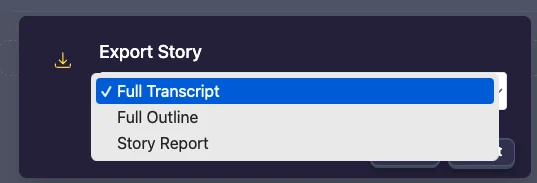
- Choose what to export:
- Full Transcript: your script, every scene in order.
- Full Outline: your sections, their descriptions, and every scene with its notes.
- Story Report: how long each section runs, how many scenes it has, each character’s estimated speaking time, and how many scenes have notes.
- Click Export. The .txt file downloads to your computer.
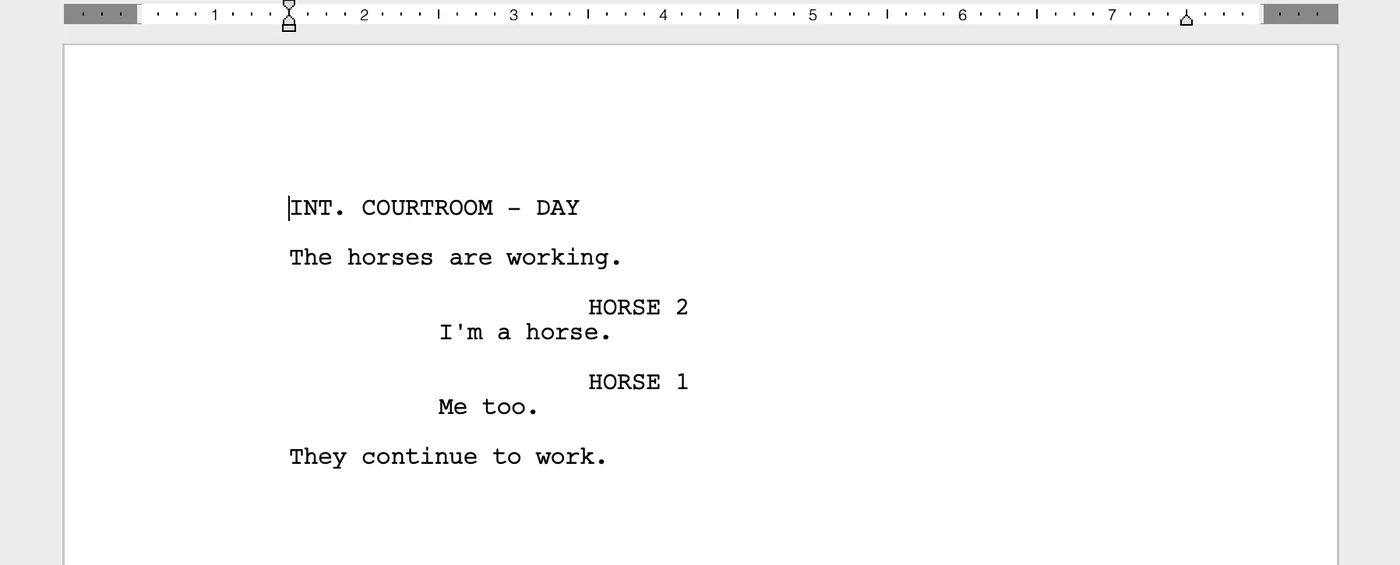
Then open the file in the screenwriting app of your choice. Look for an import option called “formatted text” or “script”, so the app reads it as a screenplay. Steps for the most popular apps are below.
Fade In
- Open Fade In.
- Click File > Import > Formatted Text (.txt).
- Select the .txt file you downloaded from TalkingDraft.
Final Draft
- Open Final Draft.
- Click File > Open.
- Select the .txt file you downloaded from TalkingDraft.
- Click Script.
WriterDuet
- Log in to writerduet.com.
- From your Projects panel, click Import.
- Select Screenplay from the Document Template drop-down.
- Click Your Computer and select the .txt file you downloaded from TalkingDraft.
- Click Open.
Script Studio
- In Script Studio, select Script as your Screenplay Content.
- Click File, then Import.
- Make sure to import the file as a Script.
- Click Import, select the .txt file you downloaded from TalkingDraft, and click Open.
Highland
- In Highland, click File > Open and select the .txt file you downloaded from TalkingDraft.
- Format it as a screenplay by clicking File > Convert to Highland.
Movie Magic Screenwriter
- In Movie Magic Screenwriter, click File > Import and select the .txt file you downloaded from TalkingDraft.
- Under “How Should I Interpret This Text?”, keep the default settings:
- Import Text in Script Format
- Text Only (non-RTF)
- Use most aggressive interpretation of the source text
- Leave everything else as it is and click OK.
Related
Last updated:
Recent commits
