The cast
The cast
The cast
Every story has a cast: the characters who appear in it. You see them in Cast Overview, the first tab of the Characters column.
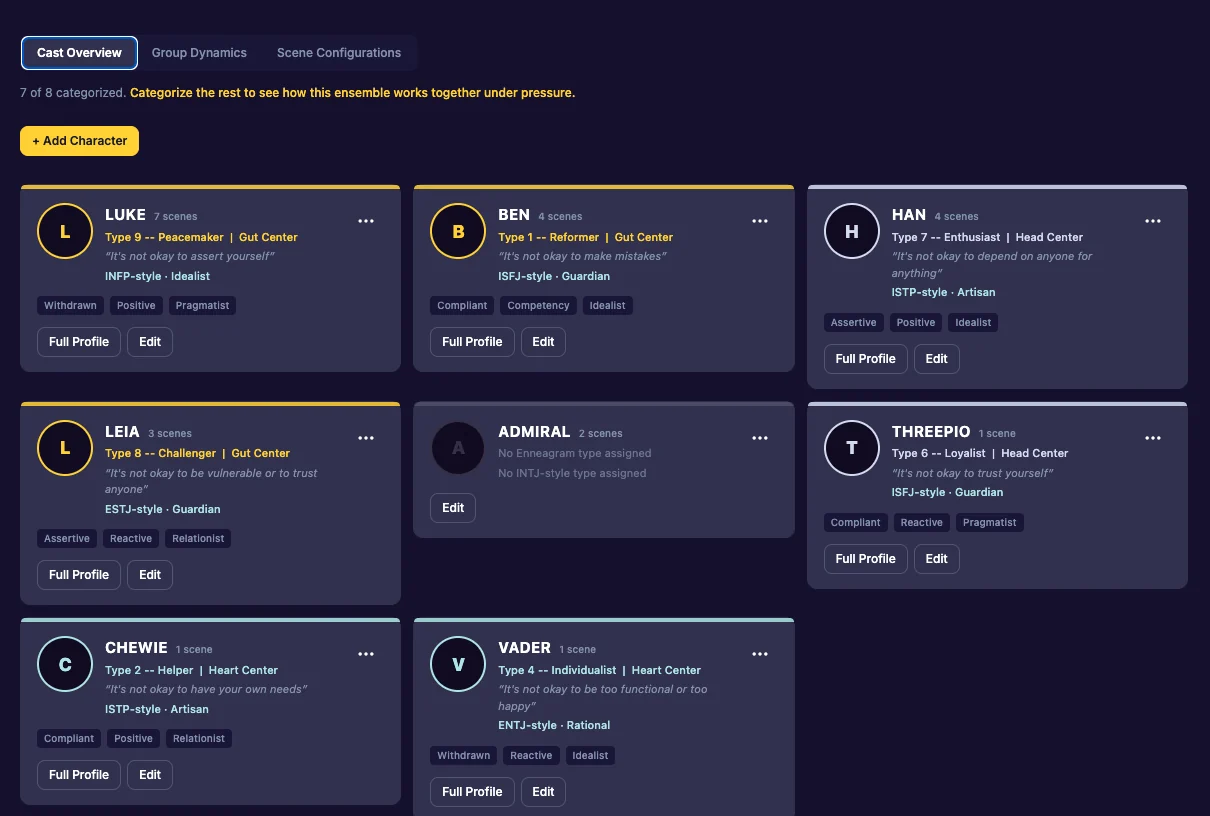
Open it
Click Characters in the top bar. On a phone, swipe to it.
How characters get into the cast
You rarely need to add characters by hand:
- From your keys. Every name you give a character key in Dictate joins the cast.
- From your lines. Every character who speaks in your transcript joins the cast.
- From an imported script. See Characters from an imported script.
ACTION, TRANSITION and SHOT are line types, not people, so they never join the cast. Neither do placeholders like NAME-3.
To add someone yourself, click + Add Character, type a name and click Save.
A character’s card
Each card shows the character’s photo or initial, their name, how many scenes they are in, and their types, if they have them. The most-used characters come first.
- Edit: rename, add a photo or give them a type.
- Full Profile: how they push and pull on the rest of the cast. See Full Profile.
- The three dots: Delete. See Remove a character.
The line at the top counts how many characters are categorized, for example “3 of 5 categorized”. See Give the app your cast’s types.
Last updated:
Recent commits
