Two-column view
Two-column view
Two-column view
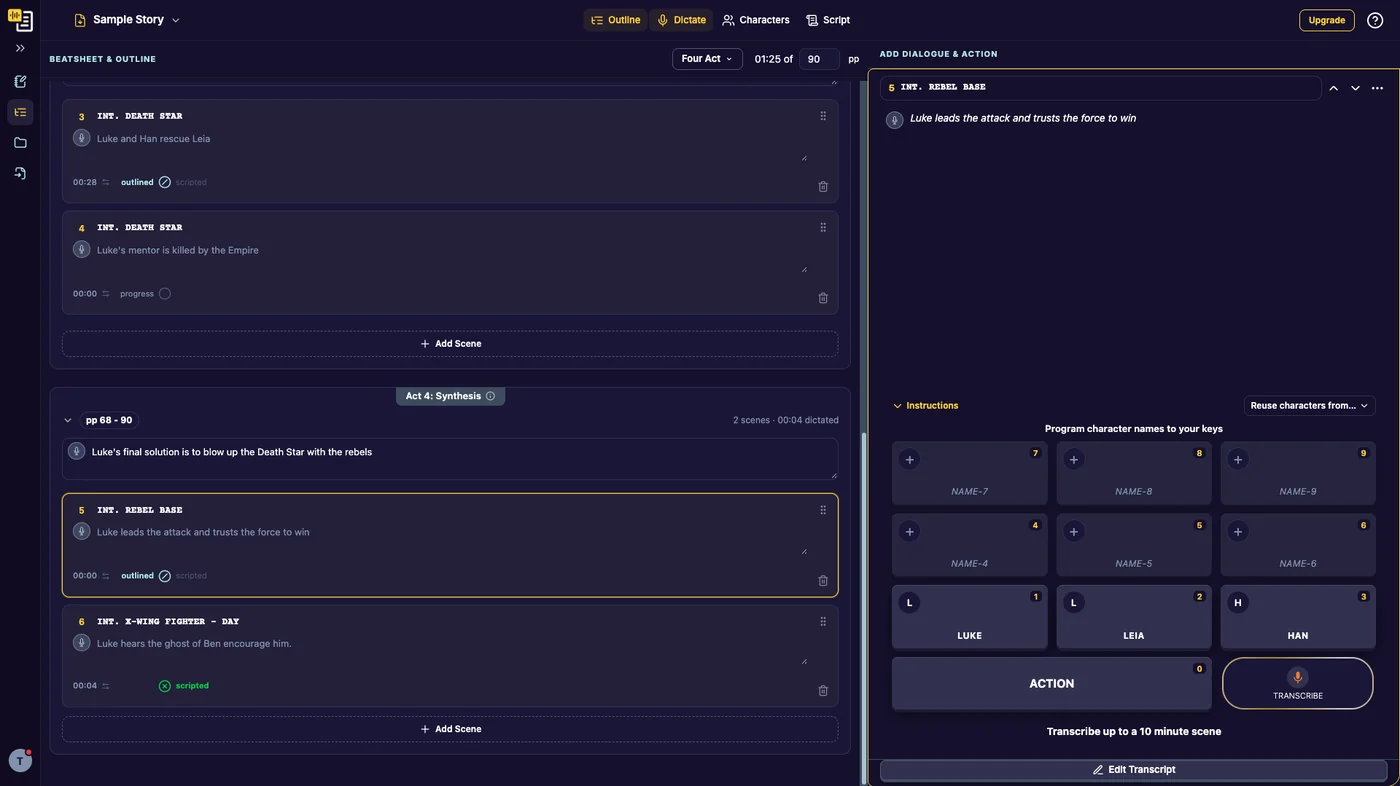
On a computer, TalkingDraft can show your outline on the left and Dictate on the right, so you can move through your story scene by scene without leaving the page.
How it works
- Click any scene in the outline. It is highlighted, and it opens in Dictate on the right, ready to record.
- Use the arrows beside the scene heading in Dictate (Previous scene and Next scene) to step through your scenes in order.
- Changes you make to a scene’s location or notes in either column show in both.
Turn it on or off
Click Dictate in the top bar to show or hide the right column. With it hidden, the outline fills the screen; open a scene with Talk Your Draft and Dictate opens over it. See Talk Your Draft.
Characters and Script open in the right column the same way.
Smaller screens
On a phone, a tablet or a narrow window, TalkingDraft shows one view at a time. See On a phone or tablet.
Last updated:
Recent commits
