The Dashboard
The Dashboard
The Dashboard is the home of your account: every story you have, how far along each one is, and the place to start a new one. To get back to it from a story, click All Stories.
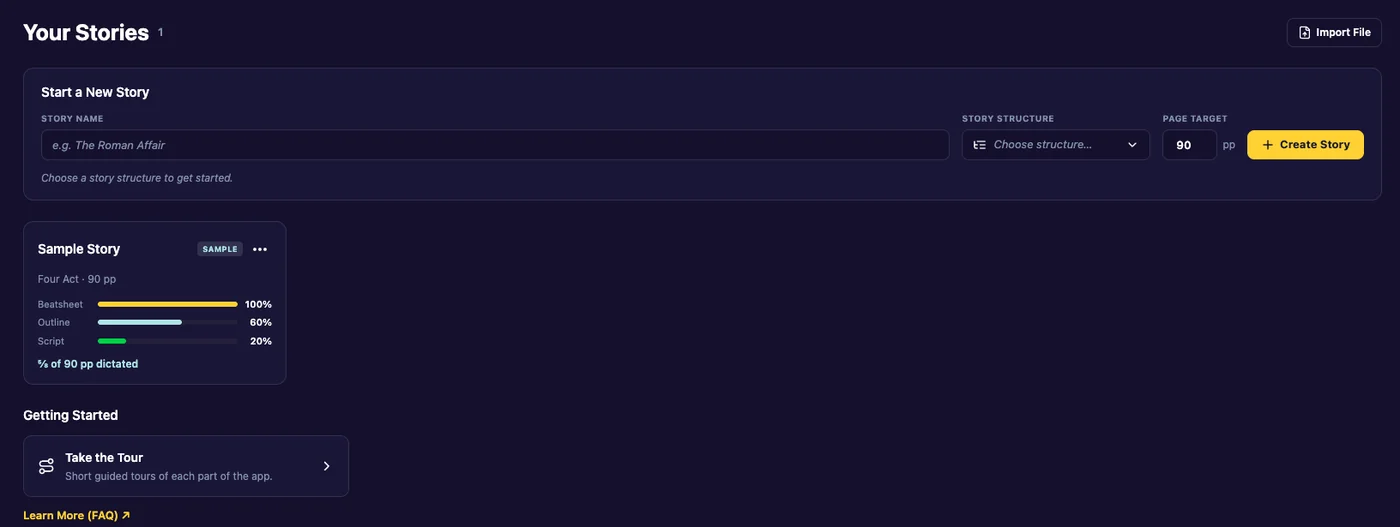
Your Stories
Each story has a card showing:
- its name, and a SAMPLE badge on the Sample Story;
- its structure and Page Target, for example “Save the Cat · 110 pp”;
- three progress bars: Beatsheet (sections with a description), Outline (scenes marked outlined or scripted) and Script (scenes marked scripted);
- how many pages you have dictated so far, for example “12 of 110 pp dictated”.
Click a card to open the story. Click the three dots on a card for Story Actions: export, copy, rename, add to a series, or delete. See Copy, rename or delete a story.
Stories in a series sit together under the series name. The rest follow under More. See Series.
Start a New Story
The form at the top of the Dashboard creates a story. See Create a story.
Import File
Start from a script or outline you already have: a Final Draft, Fade In, Fountain or text file. See Import a script or outline.
Getting Started
At the bottom of the Dashboard, Take the Tour opens short guided tours of each part of the app. See Take the Tour.
