Copy, rename or delete a story
Copy, rename or delete a story
Copy, rename or delete a story
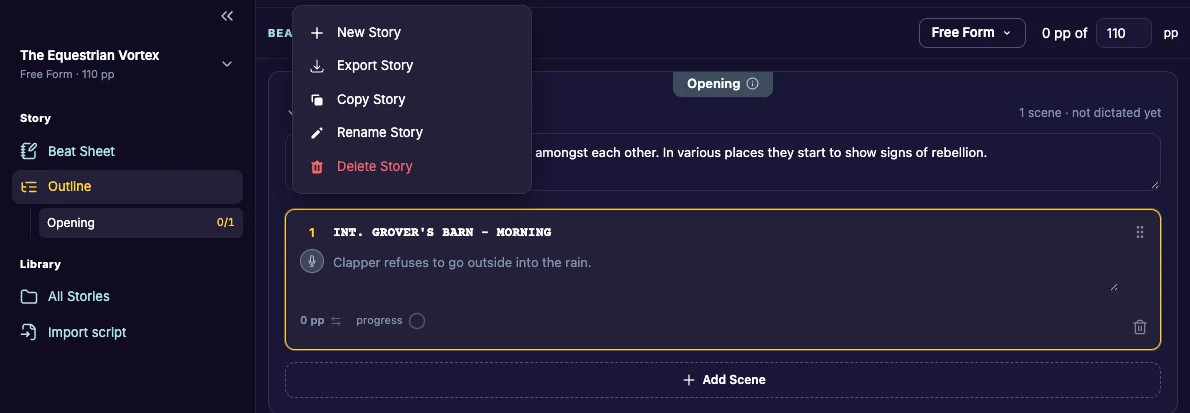
Everything you can do to a whole story is in Story Actions: the three dots beside the story name at the top of an open story, or on the story’s card on the Dashboard.
Rename
Click Rename Story, type the new name and confirm.
Copy
Click Copy Story. The copy is named after the original with “COPY” on the end; change the name if you like, then click Copy. The copy, with its recordings, appears on your Dashboard. Making a copy before a big change, such as switching structures, gives you a backup.
Delete
Click Delete Story and confirm. This can’t be undone.
Other actions
- New Story: start another story. See Create a story.
- Export Story: see Export a story.
- Add to Series and Remove from Series: see Series.
On the Standard plan, once you have used your 3 stories, New Story, Copy Story and Rename Story are marked “(upgrade)”. See Plans and the Pro trial.
Last updated:
Recent commits
