How dictation works
How dictation works
How dictation works
Dictate is where you act your scene out loud, playing every part, while you tap a key to mark who is speaking. TalkingDraft turns the recording into a formatted script: action lines, character names and dialogue, in the right place.
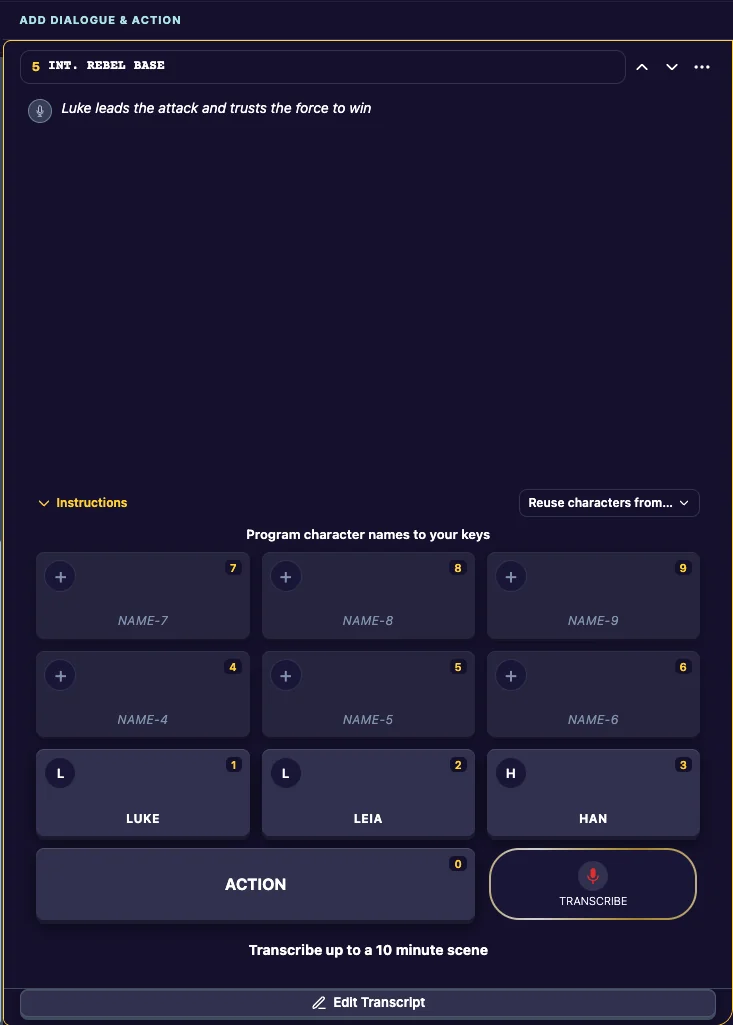
The keys
- 1 to 9 are the characters in this scene. Name them before you record. See Name your keys.
- 0 is ACTION: action lines, or stage directions.
Record a scene
- Open a scene in Dictate (click a scene in the outline, or Talk Your Draft).
- Click the record button (TRANSCRIBE). An action line is always first, so start by describing the scene.
- When a character speaks, tap and release their key, then speak their line.
- When you go back to description, tap 0 (ACTION) and keep talking.
- Click STOP when the scene is done. The app transcribes it and the lines appear in your script.
On a computer you can press the number keys on your keyboard instead of clicking. Press the spacebar to stop. On a phone or tablet, tap the on-screen keys.
Tips
- Tap, release, then speak. The key marks the start of a new line; you don’t hold it down.
- Take your time. Each tap starts a new line, so pausing between lines does no harm.
- Need a moment? Stop, then click record again when you are ready. The scene picks up where you left off. While stopped, you can rename your keys.
- Parentheticals and transitions have keys of their own. See Other rare line types.
Related
Last updated:
Recent commits
