Name your keys
Name your keys
Keys 1 to 9 in Dictate are the characters in the current scene. Name them before you record, so each line goes to the right person. You can rename them any time you are not recording.
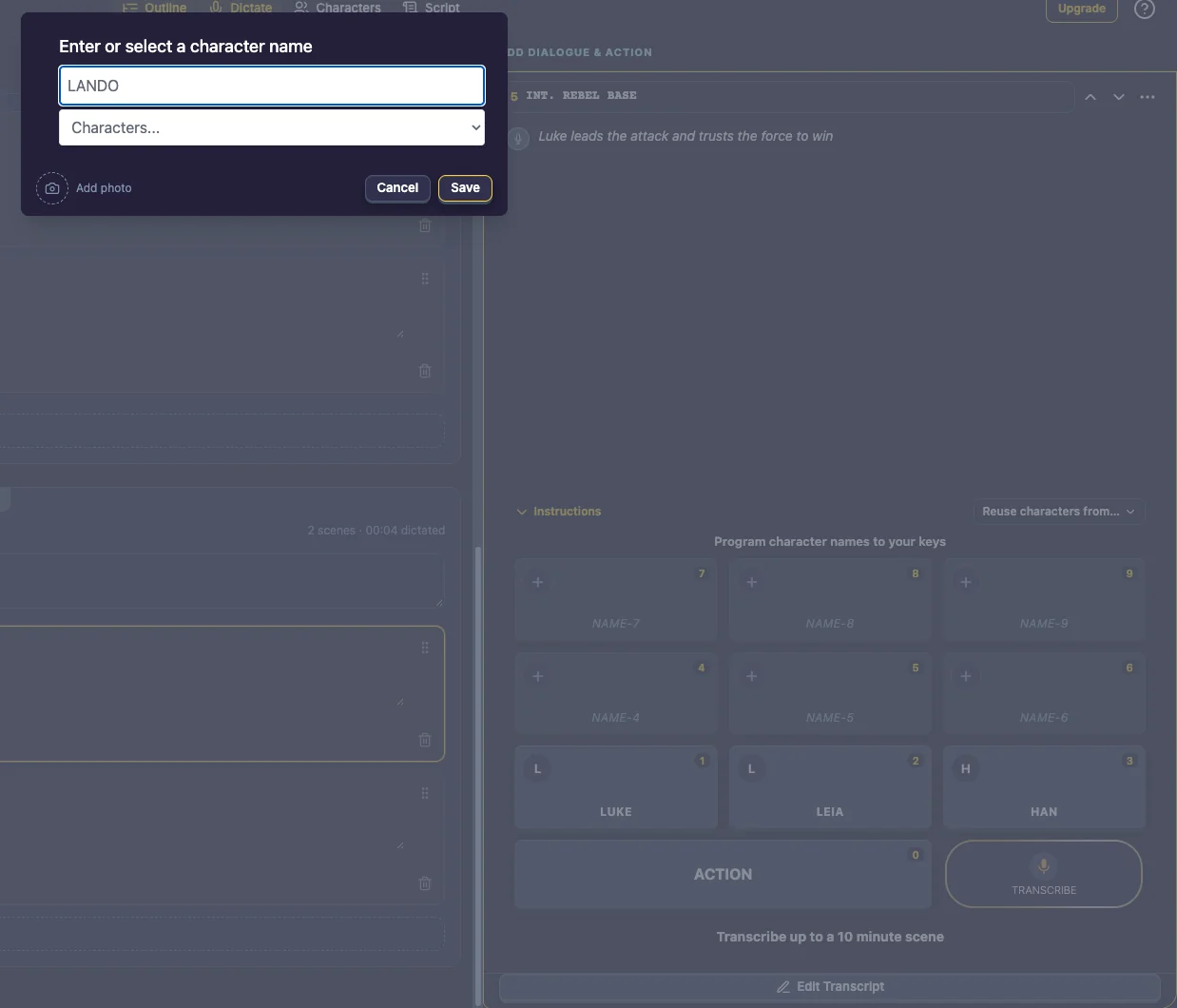
Name a key
- Click a numbered key.
- Type a character name, or pick one from Characters…: everyone in your story’s cast.
- Click Save.
Unnamed keys show a placeholder, such as NAME-3, in muted italics. Placeholders are never added to your cast, so it’s fine to leave keys you don’t need.
Every name you give a key is added to your story’s cast in the Characters column. See The cast.
Faces on the keys
If a character has a photo, it shows on their key. You can add one from the name pop-up with Add photo. See Add a photo.
Reuse a cast
If the same characters appear again, copy another scene’s names onto this scene’s keys in one step. See Reuse characters from another scene.
Keyboard Layout
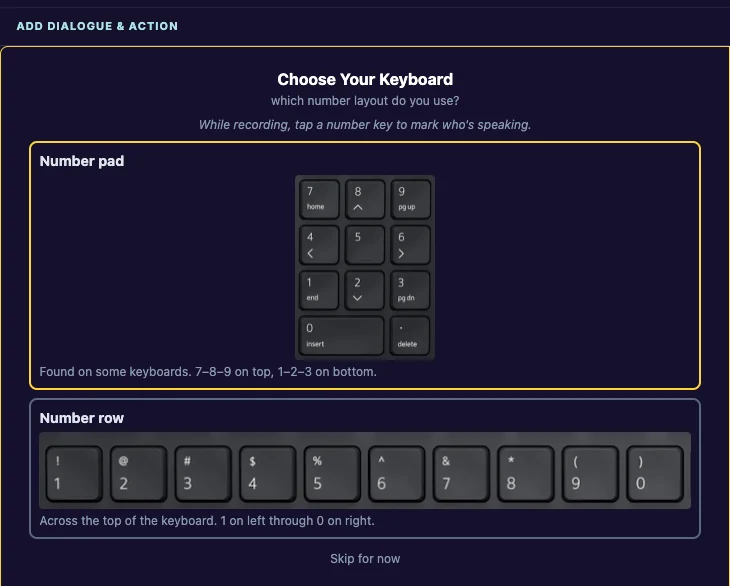
The first time you dictate, TalkingDraft asks which keys you use:
- Number pad: found on some keyboards. 7–8–9 on top, 1–2–3 on bottom.
- Number row: across the top of the keyboard. 1 on the left through 0 on the right.
- Phone or tablet: tap the on-screen buttons to mark speakers.
The on-screen keys are laid out to match. To change it later, open Settings and choose under Keyboard Layout.
