Remove a character
Remove a character
Remove a character
- In Cast Overview, click the three dots on the character’s card.
- Click Delete.
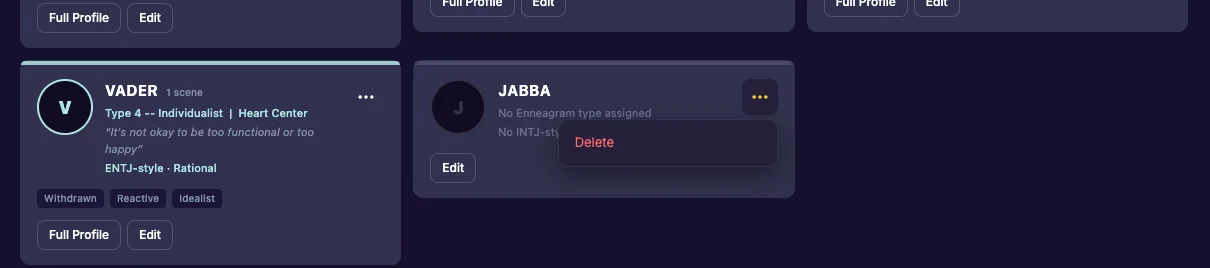
A character in no scenes
The app asks “Delete Character?”. Click Delete. This can’t be undone: their types and photo are removed too.
A character in scenes
Usually this is a one-off mistake: a misspelled name, or a name you gave a key by accident. The pop-up tells you how many scenes and lines the character has.
- Click Delete: their keys go back to placeholders, such as NAME-3, and their lines stay in the script, marked with that placeholder. Nothing is removed from your script. Give the key a name in Dictate to reassign the lines. See Name your keys.
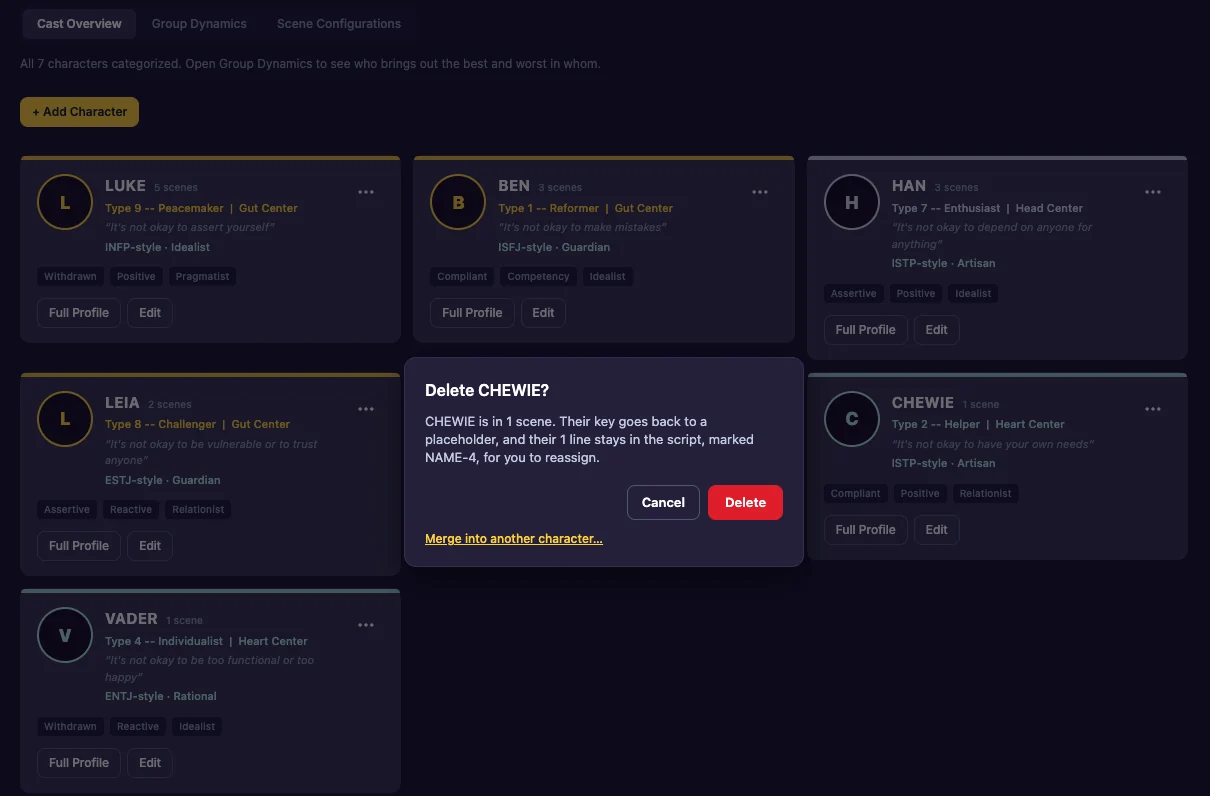
Two names for the same person
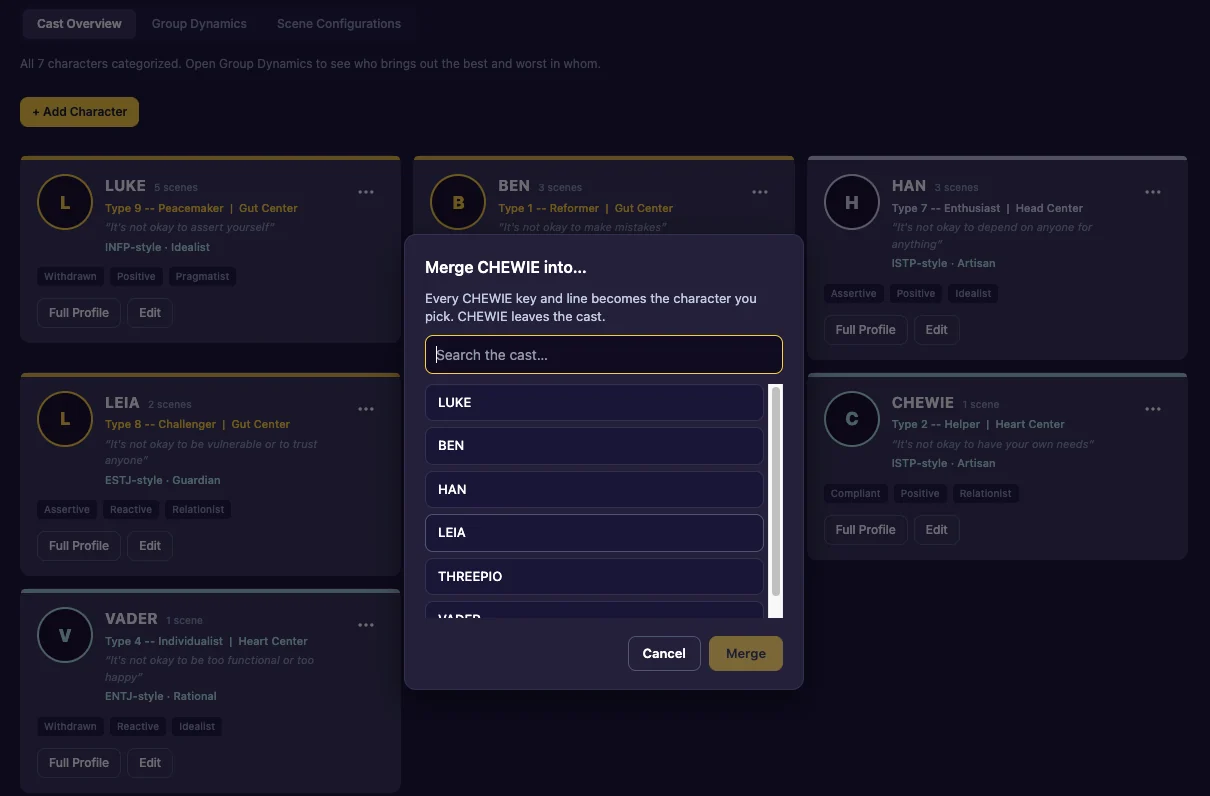
If JO and JOE are the same character, merge them:
- In the Delete pop-up, click Merge into another character….
- Pick the character to keep. Type a few letters in the search box to find them; the closest spellings are at the top.
- Click Merge.
Every JO key and line becomes JOE’s, and JO leaves the cast. Saved teams are updated too.
Last updated:
Recent commits
