Add a photo
Add a photo
Add a photo
Give a character a headshot, an actor you imagine in the part, say, and their face shows on their cast card, on their key in Dictate, and in Group Dynamics.
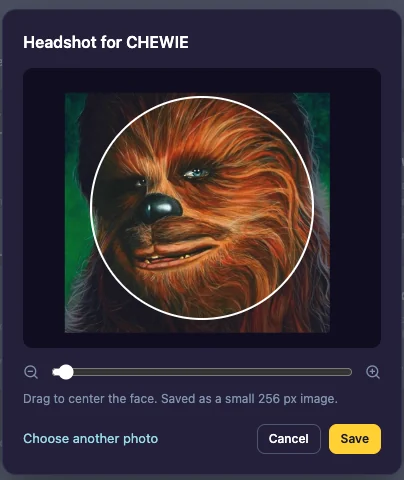
Add one
- In Cast Overview, click Edit on the character. (You can also click Add photo in the name pop-up of a key in Dictate.)
- Click the camera, or Add photo.
- Choose an image from your computer or phone.
- Drag to center the face, and zoom in or out.
- Click Save.
The photo is saved as a small 256 px image, so it loads fast.
Change or remove it
In Edit, click Remove under the name, then add another. In the crop pop-up, Choose another photo picks a different image.
Who can add photos
Character photos come with Pro: subscribers, minute-pack buyers, and everyone during the free Pro trial. See Plans and the Pro trial.
Last updated:
Recent commits
