Scenes
Scenes
Scenes live inside the sections of your outline. Each one has a location, a short note (your step outline) and, once you dictate it, its dialogue and action.
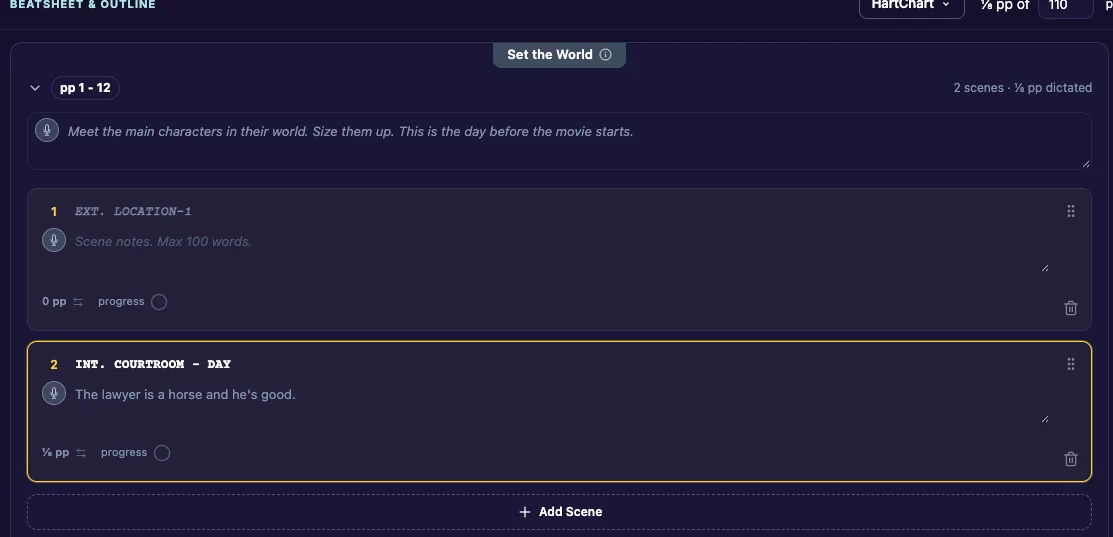
Add a scene
- In any section, click Add Scene.
- Type the scene’s location, for example “INT. KITCHEN - NIGHT”. You can change it at any time.
If you leave out INT. or EXT., the app adds it for you, using the same one as the last scene at that place.
As you type a location, the app suggests the places you have already used in this story. Pick one with the arrow keys and Enter, or keep typing. When you pick a place for a new scene, its character keys fill in with the cast of the last scene at that place.
You can also add a scene from Dictate: open Scene Actions (the three dots) and click Add Scene.
Write your step outline
Under the location, add a short scene note: what happens in this scene, in 100 words or fewer. Together, your scene notes are your step outline.
Dictate your step outline
Click the small mic in the scene notes (Speak scene notes) and say what happens. Click it again to stop. You can do the same in Dictate, in the notes above the keys.
Reorder scenes
Drag a scene by its handle and drop it where you want it: higher or lower in the same section, or into another section.
Delete a scene
Click Delete Scene (the trash can on the scene card) and confirm. You can also delete the scene you are working on from Dictate’s Scene Actions menu.
